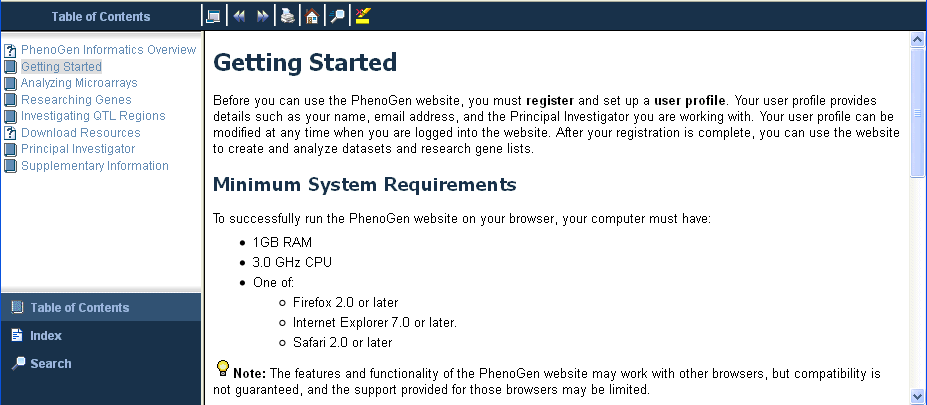
Open topic with navigation
Using the PhenoGen Website
The PhenoGen website has a number of conventions that are common throughout
all the pages and tabs.
Icons
Icons in the tables on some pages show the actions that you can take for specific data:
|
|
|
|
 Delete Delete
|
Click the Delete
icon to delete the row in which the icon displays. The Delete icon allows
you to delete datasets, gene lists, and QTL Regions. It also displays
on many detail pages, such as the Grouped and Normalized page or the tabs
for a specific gene list, to allow you to delete specific items within
a dataset or gene list.
|
|
 Download Download
|
Click the Download
icon to download the data for the row in which the icon displays. The
Download icon allows you to download datasets, gene lists, and QTL Regions.
|
|
 View Details View Details
|
Click the Magnify
icon to display details for the item on the current page, such as a specific
dataset or gene list.
|
|
 Help Help
|
Click the Help
icon to get help that pertains to a specific section of a specific page. Choose Help in the main menu then click Help Overview to display the full version of the help. Or, click Help in the main menu to display help for the specific page or tab displays.
|
|
 Information Information
|
Hover over the Information icon
for an explanation of the item the icon is beside.
|
|
 plus plus
 minus minus
|
Click the plus or minus
icons to show and hide more information.
|
|
 sort A-Z sort A-Z
 sort Z-A sort Z-A
|
Click the arrows to change the sort order in a column.
|
Rows
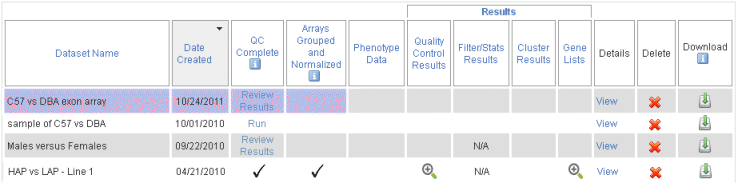
Rows in tables change to purple when you mouse over them. Click on a
row to select it. Click the View link to display row details.
Depending on your browser settings, items you click may display in the
current browser window, a new browser window, or a new tab.
Links
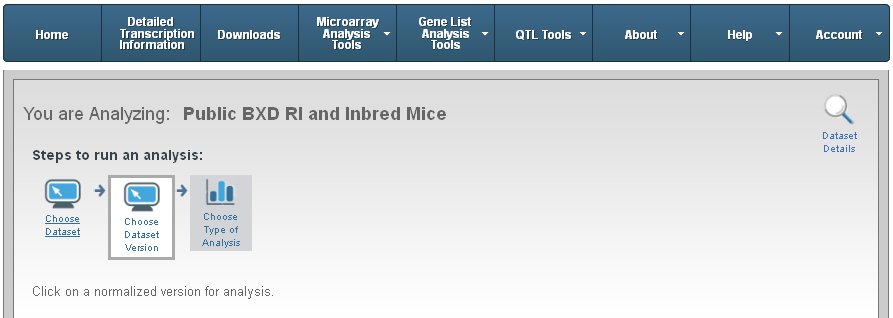
Many pages have links below the "Steps..." and at the top right (Note the Dataset Details link at the top right in the following screen shot). The links may allow you to:
- Quickly select new data without clicking a tab and starting again at the
beginning of the selection process.
- View details of your current data.
- Download the current data.
- Perform other actions, like creating a new normalized version or creating a new dataset.
Link options are customized for each page. For example, in the analyzing datasets
process, a Choose Dataset
link displays below the Steps to run an analysis and allows you to change datasets.
Using the Online Help
The PhenoGen website has online help to assist
you. You can open the full online help
or task-based help for each page in the PhenoGen website. Most instructional
pages in the help contain links to related topics in a See
Also section. You can also download the latest
PDF version of the PhenoGen User Guide.
Full Version of Online Help
- Choose Help in the main menu, then click Help Overview.
Use the table of contents, the index, or the search to find the topics
that you want.
Task-based Version of Online Help
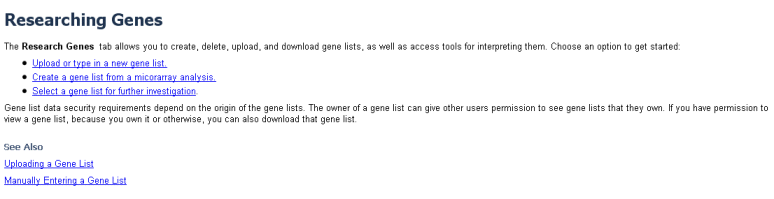
Task-based help is pertinent to a specific page in the PhenoGen website.
- ChooseHelp
in the main menu.
- Click Page Specific Help to open the task-based topic related to the current
page. The following image is an example of a task-based topic.
 Take a look